
Download Soundpad for Windows
Play sounds and music through your microphone in any voice chat. Works with Discord, TeamSpeak, and in-game comms.
Custom Hotkeys
Assign a unique hotkey to each sound. Trigger them instantly while gaming without switching windows.
Works Everywhere
Discord, TeamSpeak, Mumble, Skype, and in-game voice. No extra drivers or virtual cables needed.
Record & Edit
Built-in recorder captures system audio. Trim, cut, and normalize sounds right inside the app.
Volume Normalization
Balances loud and quiet files automatically so every sound plays at the right level.
What Is Soundpad?
A lightweight soundboard app that routes audio clips directly through your microphone in voice chats, game lobbies, and conference calls.
A Soundboard Built for Voice Chat
Soundpad is a Windows soundboard application developed by Leppsoft that plays audio clips and music directly through your microphone input. Instead of holding your phone up to the mic or fiddling with virtual audio cables, Soundpad injects sound straight into whatever voice channel you are using. It works with Discord, TeamSpeak, Mumble, Skype, and in-game voice chat for titles like CS:GO, PUBG, Dota 2, and others.
The app sits quietly in the background while you game or chat. When you want to trigger a sound, hit the assigned hotkey and the clip plays through both your speakers and your microphone feed simultaneously. Your friends hear it as though it came from your mic. The whole process takes a fraction of a second, with no alt-tabbing or window switching required.
Who Uses Soundpad?
Gamers make up the biggest chunk of the user base. Whether you want an airhorn clip after a clutch round or background music during a chill session, Soundpad handles it without getting in the way. Streamers and content creators also rely on it for reaction sounds, stingers, and on-the-fly audio gags. Some users even run it during work calls for notification sounds or presentations, though the gaming crowd is where it really took off.
On Steam, Soundpad holds an Overwhelmingly Positive rating from nearly 99,000 reviews, with 95% of players recommending it. That kind of consistency across tens of thousands of reviews is hard to fake.
Recording, Editing, and Organization
Beyond playback, Soundpad includes a built-in audio recorder that captures sound from your system output. Grab a clip from a video or stream, then trim it with the integrated sound editor. Volume normalization keeps everything balanced so one clip does not blow out eardrums while the next is barely audible.
Your sound library stays organized through categories and drag-and-drop sorting. A search bar lets you find any clip instantly, even if you have hundreds loaded up. Soundpad supports AAC, FLAC, M4A, MP3, OGG, Opus, WAV, and WMA formats, so there is no need to convert files before importing them. The whole application weighs in at around 7 MB, which means it runs with minimal impact on system resources.
Ready to try it? Download Soundpad and set up your first soundboard in minutes.
Key Features
Soundpad packs everything you need to play sounds through your mic in voice chats, with tools to record, edit, and organize your audio library.
Custom Hotkey Assignment
Bind any sound file to a keyboard shortcut and trigger it mid-game without switching windows. Use numpad keys, function keys, or any combination that fits your setup. Your hotkeys stay active while other apps are in focus, so you never have to alt-tab during a match.
Works with Any Voice App
Soundpad routes audio directly through your microphone input, so it works with Discord, TeamSpeak, Mumble, Skype, and in-game voice chat for CS:GO, PUBG, Dota 2, and more. No virtual audio cables required. The other person hears your sound as if it came from your mic.
Built-in Sound Recorder
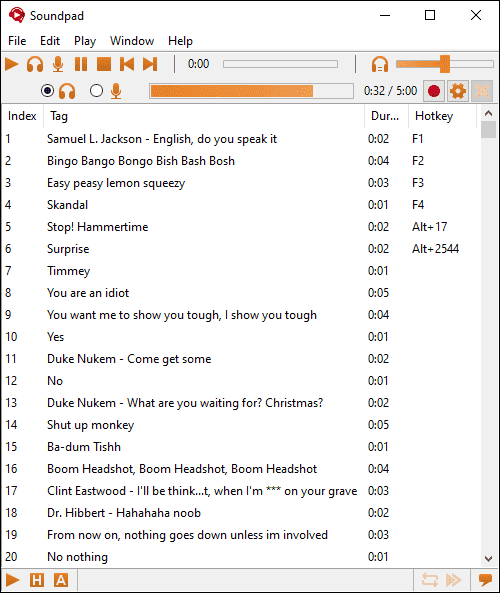
Capture audio directly from your system output. Record clips from YouTube, Twitch, or any application, then save them straight to your sound library.
Integrated Sound Editor
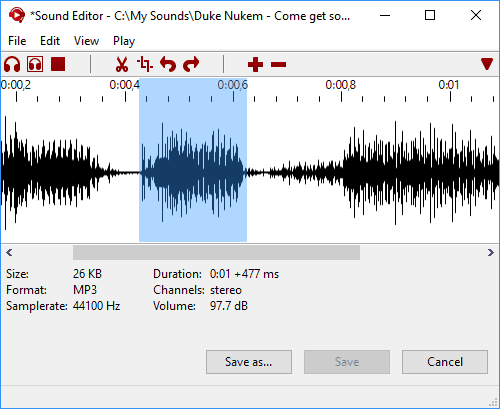
Trim the start and end of clips, cut out unwanted segments, and adjust volume levels without leaving Soundpad. The waveform view makes it easy to find the exact moment you want.
Volume Normalization
Some clips are loud, others are barely audible. Normalization balances all your sounds so they play at a consistent volume. No more blasting eardrums or whispering effects.
Flexible Playback Modes
Choose where each sound goes: speakers only (for your own ears), microphone only (for the voice chat), or both at the same time. Block Voice mode replaces your mic signal entirely with the sound file, and Auto Keys automatically presses your push-to-talk key when a sound plays.
Categories & Sound Lists
Drag and drop sounds into custom categories. Save different collections as sound lists and swap between them depending on the game or the group you are playing with.
Instant Search
Type a few letters and Soundpad filters your entire library in real time. Find the right sound clip in under a second, even when your collection has hundreds of files.
Wide Format Support
Import sounds in MP3, WAV, OGG, FLAC, AAC, M4A, Opus, and WMA. No need to convert files before adding them to your board.
Hotbar for Quick Access
Pin your most-used sounds to the hotbar at the bottom of the window. One click and they play immediately, no scrolling or searching needed.
Soundpad supports 27 languages and runs on Windows 7 through 11. Download it here to try every feature yourself.
System Requirements
Soundpad runs on most Windows machines with minimal hardware. Here is what you need to get started.
| Component | Minimum | Recommended |
|---|---|---|
| Operating System | Windows 7 (32-bit or 64-bit) | Windows 10 or 11 (64-bit) |
| Processor | Intel or AMD, 1 GHz | Intel or AMD, 2 GHz dual-core |
| Memory (RAM) | 512 MB | 2 GB or more |
| Disk Space | 20 MB available | 100 MB+ (for sound library storage) |
| Sound Card | Any compatible sound card | Dedicated sound card or USB audio |
| Microphone | At least one audio recording device | Headset mic or standalone microphone |
| Permissions | Administrator access (for install) | Administrator access (for install) |
Soundpad supports both 32-bit and 64-bit Windows. The installer is roughly 7 MB, and the installed application uses about 20 MB of disk space. Audio files in your sound library will need additional storage depending on format and quantity.
Download Soundpad
Get the latest version of Soundpad for Windows. The installer takes under a minute and works on Windows 7 through 11.
Soundpad for Windows
Version 4.0.30 — Windows 7, 8, 8.1, 10, 11 (32-bit & 64-bit)
Download SoundpadFree Trial — ~7 MB InstallerInstallation note: Soundpad requires admin privileges for setup. The installer registers a virtual audio device that routes sounds through your microphone channel. If you already own Soundpad on Steam, you can run it directly from your Steam library instead of downloading here. The free trial from the official site includes all features with no time limit on testing.
Screenshots
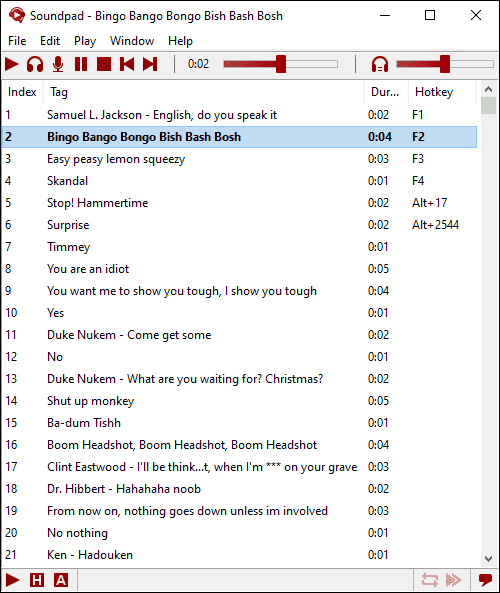
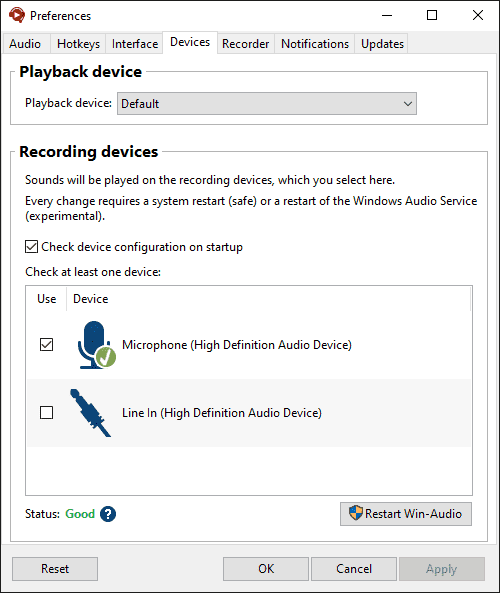
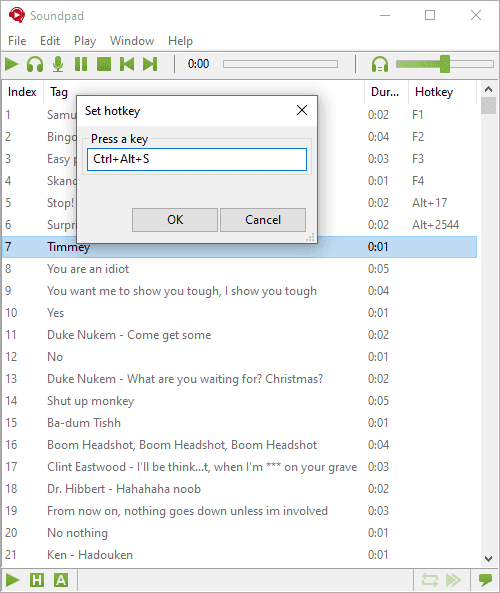
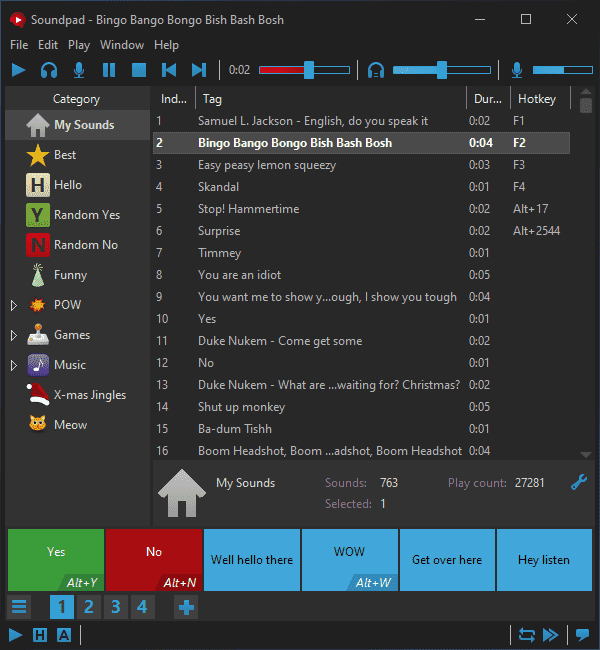
See what Soundpad looks like in action. These screenshots are taken directly from the official application.
Getting Started with Soundpad
From download to your first sound playing through Discord in under ten minutes. Here is everything you need to know.
Downloading Soundpad
Head to our download section above and grab the installer. The file is roughly 7 MB, so even on slower connections it should finish within a minute or two. You will get a standard .exe installer that works on any Windows machine from Windows 7 through Windows 11, both 32-bit and 64-bit editions.
Soundpad is also available on Steam for $4.99 USD. The Steam version and the standalone version are the same program. If you already use Steam for games and prefer having everything in one place, that works fine. The standalone installer from the official Leppsoft website gives you a free trial so you can test things out before buying.
There is no portable version. Soundpad needs to install an audio driver to route sounds into your microphone, which requires a proper installation with admin rights. This is normal for any soundboard that feeds audio into voice chat apps.
Installation Walkthrough
Run the downloaded SoundpadSetup.exe file. If Windows SmartScreen shows a warning, click “More info” and then “Run anyway” — this happens because the installer is not signed with an extended validation certificate, but it is safe.
- Welcome screen: Click Next to begin.
- License Agreement: Read and accept the terms. Click Next.
- Install Location: The default path is C:Program FilesSoundpad (or Program Files (x86) on 32-bit). Keep the default unless you have a reason to change it.
- Install: Click Install. The process takes about 10 seconds. Soundpad will install its virtual audio driver during this step, which is what allows it to inject sounds into your microphone signal.
- Audio service restart: The installer may ask to restart the Windows Audio service. Allow it. Your audio will cut out for a second and come back. This is expected.
- Finish: Check “Launch Soundpad” and click Finish.
The entire installation uses about 20 MB of disk space. No browser toolbars, no bundled extras, no third-party software. Just Soundpad and its audio driver.
Note on platform support: Soundpad is Windows-only. There is no macOS or Linux version. If you are on Mac, the closest alternatives are SoundSource or Farrago. Linux users can look at Soundux.
Initial Setup and Configuration
When Soundpad launches for the first time, you will see the main window with a menu bar at the top, an empty sound list in the center, and a categories panel on the left side. The seek slider at the bottom shows red when routing audio to your microphone and blue for speaker-only playback.
Open File > Preferences to configure the settings that matter most:
- Audio tab > Recording Device: Select your actual microphone here. Soundpad hooks into this device to mix your sounds with your voice.
- Audio tab > Playback Device: Should match your default speakers or headphones. This controls what you hear.
- Audio tab > Normalize volume: Turn this on. It automatically balances loud and quiet sounds so a whisper sound effect does not play at a fraction of the volume of an airhorn.
- General tab > Start with Windows: Enable this if you want Soundpad ready whenever you boot up. Useful if you use voice chat daily.
- General tab > Language: Soundpad supports 27 languages. Switch here if English is not your first choice.
Close the Preferences window. Now open your voice chat app (Discord, TeamSpeak, Mumble, or whatever you use) and go to its audio/voice settings. Your microphone should still be set to your normal mic — Soundpad works by injecting audio into the existing recording device, so you do not need to change your mic in Discord.
Playing Your First Sound in Voice Chat
Time to actually use Soundpad. Here is a concrete walkthrough: we will add a few sounds, assign hotkeys, and play them through your mic in Discord.
Adding sounds to your library:
- Prepare a folder with your sound files. Soundpad supports MP3, WAV, OGG, FLAC, AAC, M4A, WMA, and Opus.
- Open that folder in Windows File Explorer alongside Soundpad.
- Select the files and drag them directly into the sound list area in Soundpad. They appear instantly.
- To organize them, right-click in the categories panel on the left and select “Add category.” Name it something like “Funny” or “Gaming.” Then drag sounds between categories.
Setting hotkeys:
- Click a sound in the list to select it.
- Right-click it and choose “Set hotkey” from the context menu.
- Press the key combination you want — numpad keys work well since they rarely conflict with game controls. For example, Num 1 for an airhorn, Num 2 for applause.
- The hotkey appears in the Hotkey column next to the sound. Now pressing that key plays the sound even when Soundpad is not in focus — including while you are in a fullscreen game.
Playback modes: By default, double-clicking a sound or pressing its hotkey plays it to both speakers and microphone. You hear it and your friends hear it. You can change this behavior from the Playback menu:
- Play to speakers only — preview a sound before sending it to chat
- Play to microphone only — your friends hear it, you do not
- Play to both — the default, everyone hears it
Using the Hotbar: Go to Window > Hotbar > Open hotbar. This opens a floating grid of tiles. Drag sounds from the list onto the tiles. Each tile becomes a clickable button you can also right-click to assign a hotkey or change the tile color. If you have a second monitor, keep the Hotbar there for easy access.
Here are the most useful keyboard shortcuts to memorize:
| Shortcut | Action |
|---|---|
| Enter | Play selected sound |
| Space | Pause / resume playback |
| Esc | Stop playback |
| Ctrl + F | Search your sound library |
| Ctrl + R | Start recording system audio |
| Ctrl + N | Normalize selected sound volume |
Tips, Tricks, and Best Practices
Use the built-in recorder. Go to Sound > Record (or press Ctrl + R) to capture audio playing on your system. Heard something funny in a YouTube video? Record it directly into your Soundpad library without leaving the app.
Enable Auto Keys for push-to-talk. If your voice chat uses push-to-talk (PTT), Soundpad can automatically press your PTT key when playing a sound. Set this up in File > Preferences > Auto Keys. Without it, your friends will not hear the sound because the mic channel is closed.
Save different sound lists. Use File > Save sound list to save your current collection. Create different lists for different contexts — one for gaming nights, another for work calls (if you dare), a third for streaming. Load them quickly with File > Load sound list.
Block Voice mode. Found in the Playback menu, this replaces your microphone signal entirely with the sound effect. Useful when your environment is noisy and you want a clean playback without background chatter leaking through.
Volume matters. If friends complain that your sounds are too loud or too quiet relative to your voice, adjust the volume slider in Soundpad. The slider is tied to the Windows Audio Session, so it will not reset your system volume. Start at 50% and adjust from there based on feedback.
Ready to start playing sounds in your voice chats?
Download SoundpadFrequently Asked Questions
Answers to the most common questions about downloading, installing, and using Soundpad on Windows.
Is Soundpad safe to download and install?
Yes, Soundpad is safe. The software has been distributed through Steam since November 2016 and is developed by Leppsoft, a known developer with a verified publisher profile on Valve’s platform. Steam’s built-in integrity checks verify the files before and after installation.
The standalone installer from the official Leppsoft website (leppsoft.com/soundpad) is approximately 7 MB and installs a virtual audio driver alongside the main application. This driver is a signed Windows audio device that routes sound to your microphone channel. Windows SmartScreen may flag it on first run because the installer modifies audio device settings, but this is standard behavior for any soundboard application that injects audio into your mic stream.
With over 98,000 reviews on Steam and a 95% positive rating, Soundpad has one of the highest approval rates in the audio tools category. No credible reports of malware or data harvesting have surfaced in its eight years on Steam.
Pro tip: Always download from either Steam or the official Leppsoft website. Third-party mirror sites sometimes bundle adware with installers they did not create.
For download links from verified sources, visit our download section.
Is Soundpad free from malware and spyware?
Soundpad is free of malware and spyware. The application does not collect personal data, does not phone home to analytics servers, and does not inject advertisements. Its entire functionality runs locally on your machine.
The only network activity Soundpad performs is checking for updates (which you can disable). The virtual microphone driver it installs is a lightweight kernel-mode audio device, not a keylogger or monitoring tool. The driver shows up in Device Manager under “Sound, video and game controllers” as “Microphone (Soundpad)” and can be uninstalled separately through File > Preferences > Devices if you ever want to remove it without uninstalling the whole program.
Some antivirus programs occasionally flag Soundpad’s audio injection technique as suspicious because it hooks into the Windows Audio Session API, but these are false positives. If your antivirus blocks Soundpad, add it to your exclusion list.
Pro tip: If Windows Defender flags the installer, right-click the file, choose Properties, check “Unblock” at the bottom, then run it again.
See our system requirements section for compatibility details.
Where can I find the official safe download for Soundpad?
The two official sources for Soundpad are the Steam Store and the Leppsoft website. Both distribute the same software, but the Steam version handles updates automatically while the standalone version requires manual update checks.
On Steam, search for “Soundpad” or visit the app page directly (app ID 629520). The Steam price is $4.99 USD, though it frequently goes on sale for $3.99 or less during seasonal events. The standalone version from leppsoft.com/soundpad/en/download/ offers a free trial with limited playback time per session before requiring a license key purchase.
- Steam version: Automatic updates, Steam overlay integration, cloud backup of settings, easy reinstallation on new machines
- Standalone version: Free trial available, no Steam client required, direct license key activation, useful for PCs where Steam is restricted
Avoid downloading Soundpad from sites like Softonic, CNET Download, or random file-sharing services. These third-party sources sometimes wrap the installer in adware bundles or distribute outdated versions with known bugs.
Pro tip: The Steam version is often the better deal because it includes automatic updates and you can install it on any PC logged into your Steam account without buying another license.
Head to our download section for direct links to official sources.
Does Soundpad work on Windows 11?
Yes, Soundpad works on Windows 11 without any issues. The current version (4.0.30) is fully compatible with Windows 7, 8, 8.1, 10, and 11, covering both 32-bit and 64-bit editions.
On Windows 11, the virtual microphone driver installs through the standard Windows driver framework. Some users on Windows 11 builds 22H2 and later initially reported that the Soundpad driver did not appear in Discord after installation. The fix is straightforward: open Settings > Privacy & Security > Microphone, and make sure “Let apps access your microphone” is turned on. Windows 11’s stricter privacy defaults sometimes block new audio devices from being visible to third-party applications.
If Soundpad’s driver still does not show up after enabling microphone access:
- Close Soundpad completely (check the system tray)
- Right-click the Soundpad shortcut and select “Run as administrator”
- Go to File > Preferences > Devices and click “Install” next to the Soundpad microphone
- Restart your computer to let Windows register the driver
Pro tip: After a major Windows 11 feature update (like 23H2 or 24H2), you may need to reinstall the Soundpad driver. Go to File > Preferences > Devices and click “Reinstall” if the status shows anything other than “Good.”
Check our system requirements page for the full list of supported operating systems.
What are the minimum system requirements for Soundpad?
Soundpad runs on almost any Windows PC made in the last 15 years. The hardware requirements are minimal because the application is built in C++ and optimized for low resource usage.
Here are the official requirements:
- OS: Windows 7 or later (32-bit or 64-bit)
- Processor: Intel or AMD, 1 GHz or faster
- RAM: 512 MB minimum
- Storage: 20 MB available disk space
- Sound card: Required (onboard or dedicated)
- Microphone: At least one audio recording device connected
- Admin privileges: Required for driver installation
In practice, Soundpad uses about 15-25 MB of RAM while running and near-zero CPU during idle. When playing a sound, CPU usage spikes briefly to 1-2% on modern hardware. The 7 MB installer expands to roughly 20 MB on disk after installation.
Pro tip: Soundpad supports 27 languages, so if your Windows installation is in a non-English locale, Soundpad will automatically detect and match your system language.
For detailed specs and a comparison table, see system requirements.
Is Soundpad available for macOS or Linux?
No, Soundpad is a Windows-only application. It relies on Windows-specific audio APIs (Windows Audio Session API and kernel-mode audio drivers) that do not have direct equivalents on macOS or Linux.
The developer has not announced plans for a macOS or Linux port. Soundpad’s virtual microphone driver is implemented as a Windows kernel audio device, which makes cross-platform development significantly harder than porting a typical desktop application.
If you need a soundboard on macOS, alternatives include Farrago ($49, professional-grade) or SoundSource by Rogue Amoeba. On Linux, Soundux is an open-source option that works with PulseAudio and PipeWire. Neither of these matches Soundpad’s exact feature set, particularly the hotkey system and Auto Keys for push-to-talk integration.
Pro tip: Some users have reported running Soundpad under Wine on Linux, but the virtual microphone driver does not function in Wine. Only local playback works, which defeats the main purpose of the software.
See our features overview to understand what makes Soundpad’s Windows-native approach different.
Is Soundpad free to download and use?
Soundpad is a paid application priced at $4.99 USD on Steam, but a free trial is available from the official Leppsoft website. The trial gives you full functionality with a time limit per session before it asks you to purchase a license.
The Steam version does not have a separate trial mode. Once you buy it on Steam, you own it permanently with no subscription fees or recurring charges. Steam frequently discounts Soundpad to $3.99 or even $2.49 during major sales (Summer Sale, Winter Sale, Autumn Sale). According to SteamDB price history, the lowest recorded price was $2.49 during the 2024 Winter Sale.
The license covers one Steam account and can be installed on any number of PCs tied to that account. The standalone version from the Leppsoft website uses a license key that you activate after purchase. One key activates on one machine at a time, though you can deactivate and reactivate on a different PC.
Pro tip: Add Soundpad to your Steam wishlist to get notified when it goes on sale. At $2.49-$3.99 during sales, it costs less than a single month of most competing soundboard subscriptions.
Download the trial or purchase the full version from our download section.
What features are limited in the Soundpad free trial?
The Soundpad free trial (available from the standalone installer, not Steam) gives you access to all features but limits how long you can use the app per session. After the time limit expires, Soundpad pauses playback and prompts you to purchase a license.
During the trial, every feature works exactly as in the paid version: hotkey binding, the sound recorder, the built-in editor, categories, volume normalization, Auto Keys, and all playback modes. Nothing is locked behind a paywall during your active session time. This means you can fully test whether Soundpad works with your audio setup, your preferred voice chat app, and your microphone before spending any money.
The paid license removes the session timer entirely. There are no tiers, no “Pro” vs “Basic” editions, and no monthly plans. One purchase unlocks everything, permanently. Future updates are included at no extra cost.
Pro tip: Use the free trial to test the Soundpad microphone driver with your specific voice chat application (Discord, TeamSpeak, Zoom) before buying. If the driver installs correctly and your friends hear your sounds, the paid version will work identically.
Check the full feature list in our features section.
How do I install Soundpad and set it up with Discord?
Installing Soundpad takes about two minutes. The setup involves installing the application, installing its virtual microphone driver, and then selecting the correct input device in Discord.
Follow these steps:
- Purchase Soundpad on Steam or download the trial from leppsoft.com/soundpad/en/download/
- Install and launch Soundpad. On first run, it will prompt you to install the virtual microphone driver. Click “Install” and wait for it to finish
- In Soundpad, go to File > Preferences > Devices. Confirm your playback device (speakers/headphones) and recording device (your real microphone) are selected and their status shows “Good”
- Open Discord. Go to User Settings > Voice & Video. Under “Input Device,” select “Microphone (Soundpad)” from the dropdown
- Still in Discord Voice & Video settings, disable: Noise Suppression (set to “None”), Echo Cancellation, and Automatic Gain Control. These filters strip out Soundpad audio because they treat it as background noise
- Test it: join a voice channel, play a sound in Soundpad, and ask someone if they hear it
Pro tip: If you use push-to-talk in Discord, enable Soundpad’s Auto Keys feature (found in the toolbar). This makes Soundpad automatically hold your PTT key while playing sounds, so you do not have to press it manually.
For a more detailed walkthrough, read our Getting Started guide.
How to fix Soundpad microphone driver installation errors?
Most driver installation failures happen because of insufficient permissions, conflicting audio software, or Windows security settings blocking unsigned drivers. Here is how to resolve each scenario.
If the driver fails to install from within Soundpad:
- Close Soundpad and any voice chat applications (Discord, TeamSpeak, Zoom)
- Right-click the Soundpad shortcut or .exe and select “Run as administrator”
- Go to File > Preferences > Devices and click “Install” next to the Soundpad microphone entry
- If that fails, navigate to Soundpad’s installation folder (Steam: right-click Soundpad in Library > Manage > Browse Local Files) and run SoundpadDriverSetup.exe directly as administrator
If the driver installs but shows a status other than “Good,” try removing it (click “Remove” in Preferences > Devices), restarting your PC, and installing again. On some systems with Realtek or Nahimic audio software, you may need to disable those audio enhancement programs temporarily during installation because they lock the audio device stack.
Windows 11 users with Secure Boot enabled: the Soundpad driver is digitally signed and should install normally. If you are on an older Windows 10 build (pre-20H2), update Windows first, as earlier builds had stricter kernel-mode driver restrictions.
Pro tip: If all else fails, open Windows Terminal as admin and run pnputil /scan-devices after installing the driver. This forces Windows to re-scan all audio devices and often picks up the Soundpad microphone.
Still stuck? Our Getting Started guide has more troubleshooting steps.
Why can my friends not hear Soundpad sounds in Discord?
This is the single most common Soundpad issue, and it almost always comes down to one of three things: wrong input device in Discord, noise suppression filtering out the audio, or the play mode set to speakers-only.
Work through these fixes in order:
- Check Discord input device: Open Discord > User Settings > Voice & Video. The “Input Device” must be “Microphone (Soundpad),” not your physical microphone. If Soundpad’s mic is not listed, the driver is not installed (see the installation FAQ above)
- Disable Discord audio processing: In the same Voice & Video page, turn off Noise Suppression (set to “None”), Echo Cancellation, and Automatic Gain Control. Discord’s Krisp-based noise filter aggressively removes non-voice audio, which includes your Soundpad sounds
- Set Soundpad play mode to “Default”: In Soundpad’s menu bar, go to Play > Play mode > Set play mode to default. This routes audio to both your speakers AND your microphone channel. If it is set to “Speakers only,” you will hear the sounds but nobody else will
- Check Discord audio subsystem: If the above three fixes do not help, go to Discord > Settings > Voice & Video > scroll to the bottom > Audio Subsystem. Change it from “Automatic” to “Standard” and restart Discord when prompted
Pro tip: Use Discord’s built-in “Mic Test” (the “Let’s Check” button in Voice & Video settings) while playing a sound in Soundpad. If the green bar moves, Discord is receiving the audio and the problem is likely on the listener’s end (their volume settings or server-level muting).
See our Getting Started guide for the full Discord integration walkthrough.
Soundpad sounds are distorted or too quiet for other people – how do I fix this?
Volume and quality problems usually come from mismatched audio levels between Soundpad and your microphone, or from voice chat apps applying their own processing to the audio stream.
To fix low volume:
- In Soundpad, use the volume slider to increase the output level. You can also right-click individual sounds and adjust their volume independently
- Go to File > Preferences > Audio and click “Measure my voice volume.” Soundpad will listen to your normal speaking voice and calibrate its output to match, so sounds play at a natural volume relative to your speech
- In Windows Sound Settings > Recording devices, right-click “Microphone (Soundpad)” > Properties > Levels. Increase the microphone level to 80-100 if it is set lower
For distortion and crackling:
- Disable all Windows audio enhancements on both your physical microphone and the Soundpad virtual mic: right-click > Properties > Advanced > uncheck “Enable audio enhancements”
- If you use Realtek, Nahimic, or Dolby audio software, disable their effects for the Soundpad device
- In Discord, setting the Audio Subsystem to “Standard” (not “Automatic”) resolves most crackling reports
Pro tip: Soundpad includes a volume normalization feature (Edit > Normalize). Run this on your sound files to balance loud and quiet clips automatically, so nothing clips or gets buried when played through voice chat.
Our features section covers the normalization and recording tools in more detail.
Soundpad stopped working after a Windows update – how to fix?
Major Windows updates (like the annual feature updates or cumulative patches) occasionally reset audio device permissions or replace driver files. Soundpad’s virtual microphone driver is the component most likely to break after an update.
Here is the quickest fix path:
- Open Soundpad and go to File > Preferences > Devices. Check the status next to “Microphone (Soundpad).” If it says anything other than “Good,” click “Reinstall”
- If reinstalling from within Soundpad does not work, close Soundpad, navigate to the install folder (Steam Library > Soundpad > Manage > Browse Local Files), and run SoundpadDriverSetup.exe as administrator
- Restart your PC after the driver reinstalls
- On Windows 11, re-check Settings > Privacy & Security > Microphone. Windows updates sometimes reset the “Let apps access your microphone” toggle to off
If the Steam version of Soundpad itself stopped launching, right-click Soundpad in your Steam Library > Properties > Local Files > “Verify integrity of game files.” Steam will re-download any corrupted files.
Pro tip: After every major Windows update, take 30 seconds to open Soundpad > Preferences > Devices and confirm the status is “Good.” This takes less time than troubleshooting mid-game when you realize your sounds are not going through.
Visit our download section to get the latest standalone installer if you need a fresh copy.
How do I update Soundpad to the latest version?
The update process depends on whether you are using the Steam or standalone version. The current version is 4.0.30.
For the Steam version, updates happen automatically. Steam checks for updates on launch, and Soundpad patches download in the background. You can force a check by right-clicking Soundpad in your Library > Properties > Updates > set to “Always keep this game updated.” If an update seems stuck, right-click > Manage > Browse Local Files to confirm the executable version, then restart Steam.
For the standalone version, open Soundpad and go to Help > Check for Updates. If an update is available, Soundpad will download the new installer and guide you through the upgrade. Your sound library, hotkey assignments, and preferences carry over to the new version automatically.
Soundpad updates are small (typically 2-5 MB) and take under a minute to install. The developer pushes updates roughly every few months, usually with bug fixes, new language translations, and audio format improvements. You do not need to uninstall the old version before updating.
Pro tip: After updating, check File > Preferences > Devices to confirm the driver status is still “Good.” Occasionally, an update ships with a new driver version that requires a quick reinstall.
Get the latest version from our download section.
Soundpad vs Voicemod – which soundboard is better?
Soundpad is the better choice if you only need a soundboard. Voicemod is better if you also want real-time voice effects. They solve different problems, and the pricing models are very different.
The main differences:
- Price: Soundpad is a one-time purchase of $4.99 (often $2.49-$3.99 on sale). Voicemod is free with major limitations (rotating voice filters, limited soundboard slots in free tier) or a Pro subscription that costs roughly $10-50/year depending on the plan
- Audio quality: Soundpad supports AAC, FLAC, MP3, OGG, Opus, WAV, and WMA at native quality. Multiple Steam community threads report crackling and low-quality output with Voicemod, particularly in Discord, even after troubleshooting
- Resource usage: Soundpad uses about 15-25 MB of RAM. Voicemod’s always-running audio pipeline consumes more resources, and some users report minor FPS drops in games
- Features: Soundpad includes a built-in recorder, editor, volume normalization, hotkey-per-sound binding, and Auto Keys for push-to-talk. Voicemod focuses on voice filters (200+), a pre-built sound effects library, and Voicelab for custom voice creation
For gamers who want to play meme sounds and music clips during voice chat, Soundpad is simpler, cheaper, and more reliable. For streamers who want robot voices, helium effects, or other real-time voice modulation, Voicemod Pro offers features Soundpad does not have.
Pro tip: You can run both simultaneously if you want Soundpad for custom sounds and Voicemod for voice effects. Set Voicemod as your primary input, then route Soundpad’s output through Voicemod’s virtual cable. It takes some audio routing setup but works.
Explore Soundpad’s full capabilities in our features section.
What are the best free alternatives to Soundpad?
Several free soundboard applications exist, though none match Soundpad’s full feature set. The closest free options are Resanance, EXP Soundboard, and the built-in Discord soundboard.
Here is how each compares:
- Resanance (free): Open-source Windows soundboard. Supports hotkeys, multiple output devices, and audio file playback. Missing Soundpad’s built-in editor, recorder, volume normalization, and Auto Keys. The UI is more basic but functional
- EXP Soundboard (free): Lightweight, portable soundboard with per-sound hotkeys and volume control. No installer required. Lacks sound editing, categories, and advanced playback modes. Best for users who want something simple without configuration
- Discord Soundboard (free, built-in): Discord added its own soundboard feature with short 5-second clips you can share per server. Limited to 8 sounds on free accounts (more for Nitro), 5-second max length, and no support for importing your own longer audio files
- Soundux (free, Linux): Open-source, works with PulseAudio/PipeWire. The best option for Linux users but not available on Windows
Soundpad’s advantage over all of these is the integrated workflow: record or import audio, edit it, normalize volume, assign a hotkey, organize into categories, and play it with one keypress while Auto Keys handles push-to-talk. No free alternative offers all of that in one package.
Pro tip: If budget is the only concern, try the free Soundpad trial from leppsoft.com first. At $4.99 (or less on sale), the paid version costs less than a fast food meal and lasts forever.
See what makes Soundpad different in our features section.
How do I use Soundpad hotkeys and Auto Keys for push-to-talk?
Soundpad lets you assign a unique keyboard shortcut to each sound file in your library. Combined with the Auto Keys feature, you can play sounds through voice chat without manually holding your push-to-talk button.
To set up hotkeys:
- Select a sound in your library and press Ctrl+H, or right-click the sound and choose “Set Hotkey”
- Press the key combination you want to use (single key, Ctrl+key, Shift+key, or any modifier combination)
- The hotkey appears in the Hotkey column of the sound list. Press it any time to play that sound instantly, even while another application is focused
For Auto Keys (push-to-talk automation):
- Click the keyboard icon in Soundpad’s toolbar, or go to Tools > Auto Keys
- Set the PTT key that your voice chat application uses (e.g., the V key in Discord, or your custom binding)
- When enabled, Soundpad automatically presses and holds your PTT key for the duration of sound playback, then releases it
This is particularly useful in games like CS2, PUBG, or Sea of Thieves where push-to-talk is mandatory. Without Auto Keys, you would need to hold PTT with one hand while triggering a Soundpad hotkey with the other.
Pro tip: Use the Hotbar (View > Hotbar) for quick visual access to your most-used sounds. Drag sounds from the main list onto the Hotbar for one-click playback without needing to remember hotkey combinations.
Learn more about organizing your sound library in our Getting Started guide.
Can I record and edit sounds directly inside Soundpad?
Yes. Soundpad has both a sound recorder and a sound editor built in, so you can capture audio from your system or microphone and trim it without leaving the application.
The recorder (Tools > Sound Recorder or Ctrl+R) captures audio from any source playing on your PC. It records in real-time and saves to your preferred format. You can record game audio, YouTube clips, music streams, or anything else that plays through your speakers. The recorder captures the Windows audio session output, so it works regardless of the source application.
The editor (right-click a sound > Edit, or select and press Ctrl+E) opens a waveform view where you can:
- Trim the start and end by dragging selection markers
- Cut, copy, and paste sections of audio
- Normalize volume to a consistent level
- Fade in and fade out for smoother playback
- Preview edits before saving
Soundpad supports importing files in AAC, FLAC, M4A, MP3, OGG, Opus, WAV, and WMA formats. Drag and drop files directly from File Explorer into the Soundpad window to add them to your library. You can also paste URLs from certain streaming sites, though this depends on the site’s compatibility.
Pro tip: After recording a clip, always run Edit > Normalize on it. Sound files from different sources have wildly different volume levels, and normalization ensures they all play at a consistent loudness through your microphone.
Our features section covers the recorder and editor in more detail.